How to Master Lightroom Mobile: A Beginner’s Step-by-Step Tutorial
TL;DR: You can master Lightroom Mobile by focusing on the core sliders for exposure, contrast, and color temperature to enhance the natural beauty of your subjects. Consistent practice with specific presets tailored to your style will streamline your workflow and produce professional results quickly.
Setting the Stage for Porcelain Perfection
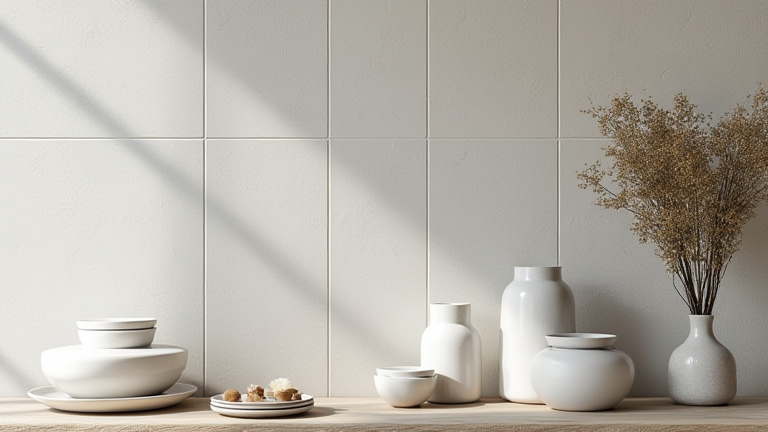
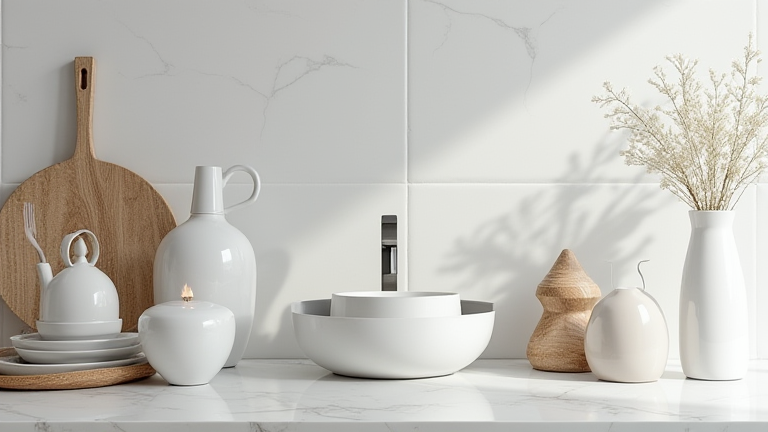
Lightroom Mobile is an indispensable tool for photographers who specialize in home decor, particularly those focusing on delicate porcelain items. Porcelain has a unique quality: it is highly reflective, often white or pastel, and prone to showing fingerprints or minor imperfections. Capturing these items requires a delicate touch to preserve their elegance without washing out the details. This guide will walk you through a beginner-friendly process to edit photos of porcelain vases, plates, and bowls, ensuring they look crisp, clean, and inviting.
If you want to dig deeper, check out our guide on iPhone 16 Pro Max vs. Galaxy S25 Ultra: Real-World Camera Te.
Step 1: Import and Crop
Start by importing your image from the camera roll. Before adjusting any colors, use the crop tool to frame your porcelain item perfectly. Porcelain objects often benefit from tight cropping, which eliminates distractions and focuses the viewer’s eye on the texture and shape of the ceramic. Ensure your horizon is level if the item is sitting on a table. A straight line creates a sense of stability and professionalism, which is crucial for home decor photography.
Step 2: Basic Light Adjustments
Navigate to the “Light” panel. Porcelain is bright, so you must be careful not to blow out the highlights. Increase the exposure slightly if the image looks dark, but keep a close eye on the histogram. Use the “Highlights” slider to recover lost detail in the shiny parts of the porcelain. Lower the highlights to bring back texture in the glaze. Conversely, raise the “Shadows” slightly to reveal details in the darker areas, such as the foot of a vase or the underside of a plate. This balance ensures that the white porcelain does not look like a blank void.
Step 3: Color and Temperature
Move to the “Color” panel. Porcelain can sometimes appear too cool or too warm depending on the lighting. Adjust the “Temperature” slider to match the mood you want to convey. For a cozy, homey feel, add a touch of warmth. For a modern, minimalist aesthetic, keep it neutral or slightly cool. Tweak the “Tint” slider to remove any green or magenta casts that might have been picked up from the surrounding environment. Finally, reduce the “Vibrance” slightly. Porcelain colors are often subtle; boosting vibrance too much can make pastels look garish and artificial.
Step 4: Texture and Clarity
In the “Effects” panel, use “Texture” to enhance the fine details of the glaze. A slight increase can make the surface look more tactile and real. Be cautious with “Clarity.” While a small amount can help define the edges of the porcelain, too much will make the image look harsh and over-processed. Keep these adjustments subtle to maintain the soft, refined look associated with high-quality home decor.
Step 5: Save and Export
Once you are satisfied with the edits, tap the checkmark to save. If you are planning to use this look for a series of porcelain items, consider saving this adjustment as a preset. This allows you to apply the same settings to other photos in seconds, ensuring consistency across your portfolio or social media feed.
FAQ
Q: Why does my white porcelain look gray in Lightroom?
A: This usually happens when the exposure is too low or the shadows are crushed. Raise the exposure and increase the shadows to bring back the brightness, ensuring the white appears pure and clean.
Q: Should I use sharpening on porcelain photos?
A: Yes, but apply it sparingly. Porcelain is a smooth material, so excessive sharpening can create noise or